Onze Diensten
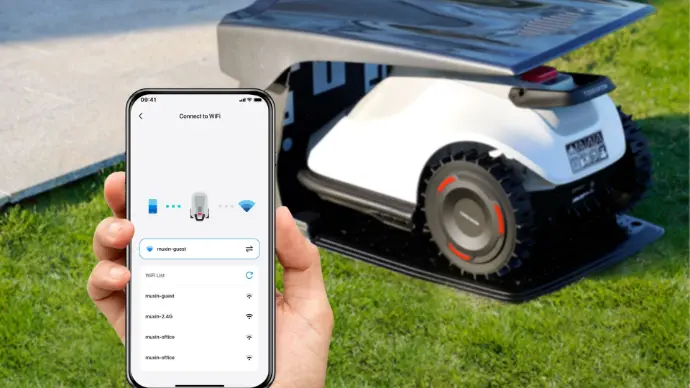
Installatie & Begeleiding
Hulp nodig bij het installeren van jouw robot?
Wij bieden :
- Gebruikershandleidingen & Veiligheidsinstructies
- Snelle Opstart Gids voor Airseekers & voor TerraMow
- Configuratie VIDEOS
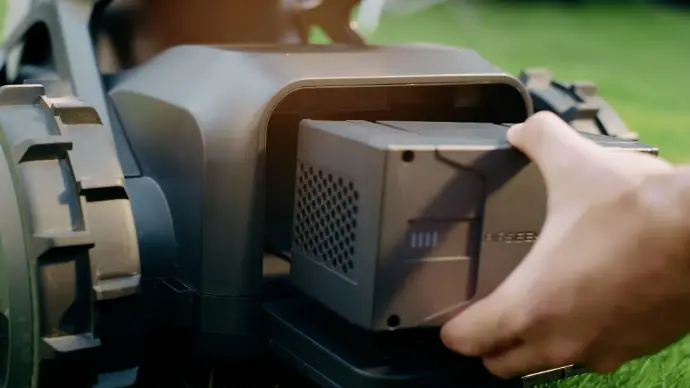
Word partner
Bent u een tuinspecialist, Doe-het-zelf-zaak of robotmaaier installateur en bent u geïnteresseerd om een partner te worden?
- Officiële samenwerking voor distributie
- Competitieve reseller voorwaarden
- Duurzame samenwerkingsmogelijkheden
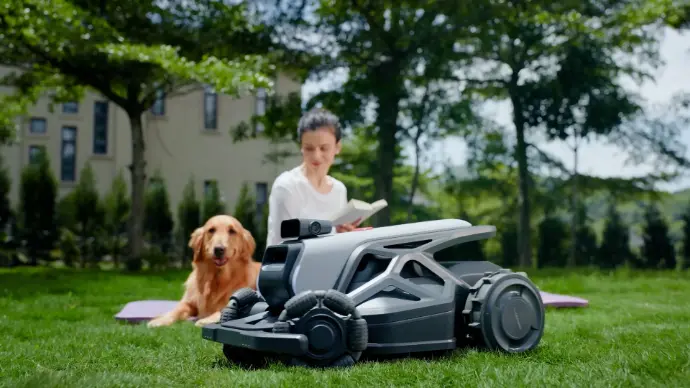
FAQ
Heb je nog vragen?
Raadpleeg onze FAQ voor informatie over :
- Product vragen
- Algemene informatie
- Probleemoplossing & Ondersteuning
- Productinformatie & technische ondersteuning voor Airseekers & TerraMow
Installatie & Begeleiding
- Airseekers Tron SE User Manual ENG
- Airseekers Tron SE Manuel d'utilisation FR
- Airseekers Tron SE Handleiding NL
- Airseekers Tron Plus User Manual ENGLISH
- Airseekers Tron Plus Manuel d'utilisation FRANCAIS
- Airseekers Tron Plus Handleiding NEDERLANDS
- Airseekers SETUP GUIDE ENG
- Airseekers GUIDE FRANCAIS
- Airseekers GUIDE NEDERLANDS
- Quick Guide ENGLISH
- Guide Rapide FRANCAIS
- Snelle Opstartgids NEDERLANDS
FAQ
These terms of service ("Terms", "Agreement") are an agreement between the website ("Website operator", "us", "we" or "our") and you ("User", "you" or "your"). This Agreement sets forth the general terms and conditions of your use of this website and any of its products or services (collectively, "Website" or "Services").
Basic Information
Q: What is Tron?
A: Airseekers Tron is a brand-new all-terrain robotic lawn mower that combines ATV-inspired design with advanced lawn care technology. It is designed for users seeking refined garden aesthetics and efficient lawn maintenance. Beyond mowing, it features the FlowCut mulching system that finely chops grass clippings and returns them to the soil as natural organic mulch, helping to retain soil moisture and temperature while naturally fertilizing the lawn—truly achieving "mowing and mulching in one."
Q: What are the advantages of Tron compared to traditional lawn mowers?
A: Tron features enhanced Mulching technology through its FlowCut chamber, integrating mowing, light grass collection, and automatic mulch-based lawn care. Compared to traditional mowers, it increases blade cutting frequency, produces finer clippings, improves decomposition efficiency by 30%, helps retain 25% more moisture, an naturally nourishes the soil. Additionally, it is equipped with Panoramic Vision 360° and a RuggedRide chassis with exceptional terrain adaptability.
Installation & Setup
Q: How do I install the device?
A: Please read the safety manual before installation. Place the charging station on a flat, open surface with at least a 2×2 meter obstacle-free area in front. Avoid areas prone to flooding or heavy foot traffic. The RTK base station can share a power source with the charging station or be installed independently in an open area for optimal signal coverage. After assembly and power connection, place Tron in the charging station. When the indicator turns green and the front and rear lights show flowing green lights, it indicates charging. Once fully charged, the lights will stay solid green.
Q: How do I turn the machine on and off?
A: After inserting the battery, press and hold the power button for 3 seconds to power on. During startup, the white light stays on, the tail light flows from both sides inward, and the front light flows from top to bottom. Then it enters a white breathing state and finally solid white when powered on. To turn off, press and hold the power button for 3 seconds. The tail light flows outwards and the front light upwards before all lights go off.
Q: How do I pair the device?
A: After powering on Tron, enable Bluetooth and connect to WiFi on your phone. Open the app and scan the QR code on the device to pair. First-time pairing also requires scanning the RTK QR code. During pairing, a blue light will flash. A successful connection is confirmed with a sound and normal lighting.
Q: How do I connect to the app?
A: Ensure that WiFi, Bluetooth, location services, and camera permissions are enabled. Make sure the app is up-to-date. Try restarting the app and the device. If the issue persists, submit feedback via the app so our engineers can analyze your device status.
Q: How do I get Tron to mow automatically?
A: Tap the map icon in the top right corner of the app to enter mapping mode. Once all preconditions are met, control Tron to map the area, set mowing zones, no-go zones, and paths. You can also set mowing angle and height. Save the map and press start—Tron will begin working automatically.
Q: What is mapping mode?
A: Mapping mode allows the robot to map the physical boundaries after being powered on. In this mode, the white light remains solid.
Q: How do I perform an OTA update?
A: Go to "System Upgrade" in the app to start the OTA update. During the update, the blue light flows outward; after completion, the white light remains solid, and the robot will reboot with a voice prompt.
Troubleshooting & Support
Q: What should I do if the device won’t start?
A: Please check the following: Is the battery charged and properly installed? Is the power switch on? Are there any error messages or warning lights? Is the blade disc jammed? Are the safety sensors functioning properly? If all checks are fine, try resetting the device. If it still won’t start, contact after-sales support.
Q: What does a red light on the device mean?
A: A red light indicates an emergency stop or critical error. Try the following to resume: clear the error in the app, press the power button once, or check if the STOP button was accidentally pressed.
Q: What if the robot isn’t charging?
A: Check the following: Are the charging contacts clean and well-connected? Is the system up to date via the app? Try restarting both the robot and the app. If the problem persists, submit a report via the app.
Q: What if the app doesn’t respond or won’t connect to the robot?
A: Please submit a feedback report via the app. Our engineers will analyze the device status and provide a targeted solution.
Q: Can Tron be reset to factory settings?
A: Yes, unbinding the device will automatically reset Tron to factory settings.
Q: What should I do if the robot fails to dock at the charging station?
A: Avoid direct sunlight, which can interfere with docking. Try repositioning the charging station or adjusting the docking time. Clean the QR code area to ensure proper recognition, especially if it has been exposed to rain or dirt.
Q: Why can’t the robot return to the charging station?
A: This may be due to: 1) The robot is outside its working zone or path. Please adjust its position. 2) The RTK signal is weak due to distance or obstructions. Check the signal and move the robot to an open area if needed. 3) The path is blocked. Clear any obstacles from the route.
Q: Why is the RTK not working properly or showing weak signals?
A: It may be due to a loose adapter, power disconnection, or poor RTK base station placement. Ensure the adapter is firmly plugged in (green light should be on). Reposition the RTK base in an open, unobstructed area for stable signal.
Q: What could prevent mapping mode from starting?
A: 1) Phone Bluetooth is not connected or already in use by another device. 2) Tron is not initially placed in the charging station. 3) The charging station is not powered—check the power supply and indicator light. 4) RTK signal is abnormal—reposition the RTK base.
Other
Q: Can the device be remotely controlled?
A: Yes, once the robot is connected to the internet, it can be remotely controlled via the app. Please ensure the robot stays within your visual line of sight.
Q: Does the robot support auto-return to charge?
A: Yes, when the battery drops below 15%, the robot will return to the charging station. You can adjust this threshold in the app.
Q: How does the robot avoid obstacles? Can it avoid small animals?
A: TRON is equipped with AI-based obstacle detection sensors that can recognize and avoid obstacles and small animals.
Q: What anti-theft features does the robot have? Can it be tracked if lost?
A: TRON has built-in GPS tracking. You can locate the robot remotely as long as tracking features are enabled.
Pre-sales — Product
Does TerraMow require an internet connection to operate?
No, the robot does not require an internet connection for operation. All map data is stored within the robot. An internet connection is only needed for initial network setup and for connecting to the app for further customization.
There are two internet connection options:
1) Connect with WiFi
2) Cellular Data — WiFi is always prioritized, and cellular data activates when WiFi is unavailable (if the Cellular Data switch is on and data is available).
Note: The new robot comes with 1 GB of gift cellular data in the first year. Additional data can be purchased in the TerraMow app. [V series] Users can also insert their own SIM card to enable the Cellular Data feature.
How does the SIM card work on TerraMow?
a. The user can use the built-in SIM card — data recharges and inquiries can be managed within the TerraMow app.
b. Users can also choose to use their own card, managed through the respective service provider's app.
Note [V series]: If the pre-installed SIM is not activated within 12 months, it becomes invalid. If not recharged within 6 months after running out of data, it also becomes invalid.
How long is the official cellular data package valid?
The purchased 1 GB cellular data package is valid for one year. Once used up or expired, a new 1 GB package (if available) will automatically activate. Unused data expires one year after activation.
What are the dimensions of the robot and packaging?
a. Robotic mower:
[V series] 60.2 (L) x 38.4 (W) x 33.1 (H) cm
b. Base station with garage:
72.7 (L) x 48.0 (W) x 45.2 (H) cm
c. Packaging:
[V series] 83 (L) x 49 (W) x 45.5 (H) cm
How much does TerraMow weigh?
a. Robotic mower:
[V series] 11.5 kg
b. Base station with garage: 6.5 kg
c. Packaging: Gross weight 28 kg
What is the battery life and durability?
The battery supports 1,000 full charge-and-discharge cycles with less than 20% degradation, making it quite durable.
Why does the base station garage have a slot design?
The slot design allows the robot to detect rainwater even while inside the base station, so it can respond appropriately to weather conditions.
Does the blade support bidirectional rotation?
Due to the waterproof design, the robot's blade currently rotates in one direction only and does not support reverse or bidirectional rotation.
What is the blade size and speed?
The blade has a diameter of 20.3 cm and a rotation speed of 3,200 rpm (revolutions per minute).
What is the difference between S800 vs S1200 and V600 vs V1000?
a. S series (S800 vs S1200):
- Mapping area: 800 sqm vs 1,200 sqm
- Anti-theft GPS module accuracy: 20-30 m vs 2-5 m
b. V series (V600 vs V1000):
- Mapping area: 600 sqm vs 1,200 sqm
- Color: White vs Gray
- Runtime per charge: 120 min vs 150 min
Note: Through technological iterations, the mapping limit of the V1000 has been increased to 1,200 sqm.
What upgrades does the V series offer over the S series?
a. Optical Hardware Upgrade: Improved cameras and a larger CMOS sensor for higher resolution and a greater photosensitive area.
b. Enhanced HDR Image Processing: Better visual positioning and depth detection, especially in high-dynamic lighting conditions.
c. Smarter AI Capabilities: More precise depth perception, stronger visual positioning, and more robust object recognition — ideal for complex gardens.
How does TerraMow compare to robotic mowers with boundary wire or RTK?
TerraMow is superior in both technology and user experience:
a. No wire, no RTK — easy installation
b. Automatic mapping
c. Precise navigation and positioning
d. Intelligent and highly customizable
How does TerraMow compare to other visual navigation robotic mowers?
TerraVision outperforms other visual navigation solutions:
a. Binocular vs. Trinocular — a dedicated AI camera with a larger CMOS for better imaging and recognition.
b. Autonomous driving-grade cameras — better suited for long-term outdoor use.
c. Top-tier AI processor — the CPU used by the robot is 80% better than competing models.
What is the maximum coverage area for each model?
[S series]
- S800: less than 800 sqm
- S1200: between 800 sqm and 1,200 sqm
[V series]
- V600: less than 600 sqm
- V1000: between 600 sqm and 1,200 sqm
Is TerraMow suitable for my garden?
Suitability depends on three key factors:
a. Lawn area: Choose a model based on the maximum lawn area. If a single lawn exceeds the model limit, current products cannot meet the requirements. For gardens with separate lawns (each under the limit), use multi-base station mode for areas larger than 120 sqm, or spot mode for smaller areas.
b. Slope: Maximum recommended slope is 20°. Areas exceeding this should be marked as no-go zones. Height differences should not exceed 2 cm.
c. Narrow paths: Minimum passable width is 60 cm. At least 1 m is recommended for smooth operation.
Note: Multi-base station mode supports up to three independent maps.
App & Settings
How can I limit the mapping area if my lawn has no clear boundaries?
a. Set up virtual no-go zones/fences during mapping:
1) Pause mapping in areas where the robot should not continue.
2) Set up no-go zones/fences on the map editing page.
3) Tap 'Continue/Resume Mapping.'
4) After mapping, further adjust no-go zone settings.
b. Alternatively, place physical obstacles or barriers before starting the mapping process.
Where should I install the base station?
The base station can be installed both inside and outside the lawn.
a. Regardless of location: follow the user manual, choose a suitable spot, and secure the base station firmly to the ground — any movement may cause self-positioning issues.
b. If installing outside the lawn: if the robot can go straight for 5 meters into the lawn after leaving the base station, nothing else is needed. Otherwise, customize a pathway (up to 60 m) from the base station to the lawn in the app.
How does multi-base station mode work?
a. Each map is linked to one base station. Map data is stored in the robot and accessed by scanning the base station's QR code.
b. Multi-base station mode supports up to three independent maps (using three base stations).
c. Do not set up multiple base stations on the same continuous lawn — it will not increase coverage and may cause self-positioning issues.
How does the Anti-theft feature work?
There are 3 levels of anti-theft protection:
a. Alerts and lock (Strong): If moved more than 50 m from its usual work location, the robot automatically locks. It can be unlocked via Bluetooth using the same TerraMow app account, or by returning the robot to its original location. It is recommended to enable Cellular Data alongside this setting for GPS tracking.
b. Notification only (Moderate): If moved more than 50 m from its usual work location, the user receives a notification in the app.
c. Anti-theft off
The robot misses some areas with tall grass, flowers, or weeds. What should I do?
The robot may identify these as obstacles and avoid them. Possible solutions:
- In the app: use grass-cutting zones to cover these areas and adjust the obstacle avoidance height (up to 35 cm), while ensuring safe operation.
- Manual pre-mowing: use the robot's remote control function to cut down tall grass manually before scheduling mowing tasks.
- Schedule regular and frequent mowing after cutting taller obstacles — this significantly reduces the issue over time.
Note: The robot typically avoids obstacles larger than 10 x 10 x 5 cm. The blade disc in remote control can only be started when connected via Bluetooth.
The robot is not edge-cutting properly. What should I do?
a. If caused by obstacles at the edge:
1) Adjust the edge-cutting distance in the app.
2) Enable 'edge-cutting for tall grass' in the robot settings.
3) Use grass-cutting zones with a customized obstacle avoidance height (up to 35 cm).
4) Use remote control to manually cut obstacles.
5) Schedule regular mowing to prevent regrowth issues.
b. If the user doesn't know how to set the edge-cutting distance: suggest setting a larger edge distance, or consider ride-on edge cutting.
How do I set up new zones on the map?
a. If the new area is directly connected to the existing map: start a task in 'Auto' mode — the robot will automatically update the map. Or set grass-cutting zones to where you want to add/update, ensuring no protruding obstacles.
b. If the new area is not connected to the existing map:
- If the total map size exceeds the coverage limit: use multi-base mode for areas over 120 sqm, or spot mode for smaller areas.
- If a pathway can be set: use the 'create multi-zone pathway via remote control' feature.
- If no pathway is possible: use multi-base mode or spot mode depending on the size.
Is there a limit to the number of zones I can create?
There is no hard limit to the number of zones. However, for optimal app performance, it is recommended to set no more than 10 zones.
Can TerraMow avoid flower beds, pools, or other garden features?
Yes. The TerraVision system can identify obstacles and automatically recognize them as lawn boundaries during mapping. It is also recommended to set up no-go zones as a double safeguard.
Note: The robot typically avoids obstacles larger than 10 x 10 x 5 cm.
How does TerraMow handle steep slopes?
The maximum slope the robot can climb is 20° (36.4%). It is recommended to set no-go zones on slopes that exceed this angle.
Some mowing modes are missing in the app. What should I do?
a. First, check that both the firmware and app are updated to the latest version.
b. Check if mapping is fully completed. If incomplete, only 'Mapping,' 'Mowing,' and 'Spot' options are available.
c. Recommended solution: issue a 'Mapping' task to allow the robot to complete unmapped areas. Once mapping is fully complete and the robot returns to the base station, all mowing options will become available.
Note: The 'Mapping' option disappears once the map is completed. The 'Auto' option can be used for map updates thereafter.
What is the recommended mowing setting for best results?
There is no single 'best' setting — configure it based on your garden's needs. For users who mow at least once per week, the following setup is recommended:
- Mowing path space: 14 cm
- Moving speed: Fast
- Blade disc rotation speed: Eco
- Mowing direction: Minimize the number of turns as much as possible
Troubleshooting
The app is showing an error code. What should I do?
a. Tap the error code message directly in the app — it provides a brief solution and step-by-step guidance.
b. Look up the error code in the troubleshooting reference guide:
https://support.terramow.com/hc/en-001/articles/31679481037849-Troubleshooting-Code-Reference
c. If the issue cannot be resolved, submit feedback in the app for further analysis.
Maintenance
How often should I perform maintenance on TerraMow?
It is recommended to maintain your TerraMow regularly based on actual usage frequency. If you are unsure when maintenance is due, check the smart suggestions in the app's maintenance section.
Note: Smart maintenance suggestions are currently available for blade and base station maintenance.
Account
How does account sharing work?
1. Account sharing requires both accounts to be in the same country/region.
2. Can shared account users update the firmware? No — only the account that owns the robot can update firmware or share with others. This is a current cloud platform limitation that will be improved in a future update.
3. Can the robot's owner account be changed without losing configuration? Yes, by reconfiguring the network. Only shared users will be removed; the live camera will need to be reactivated, but the map and all other settings will be preserved.
Feedback
How do I submit feedback or report an issue in the app?
1) Open the TerraMow app and navigate to the Robot Selection page.
2) Tap on the feedback icon in the top right corner.
3) Describe the issue in the app.
4) Make sure 'Upload all logs' is toggled on.
5) Tap 'Submit' to send your feedback.
I failed to submit my feedback. What can I do?
This may be due to a large attachment, network issues, or an outdated app version. Move the robot closer to your router to improve WiFi connection quality and try submitting again.
I submitted feedback but failed to upload the logs. How do I upload them separately?
1) Move the robot closer to the router to ensure better WiFi connection quality.
2) In the app, tap 'Settings,' scroll to the bottom, and tap 'Analysis & Improvement.'
3) Tap 'Upload all logs' on that page.
Word partner
Bent u een reseller en zoekt u een samenwerking?
Bij GASTON ROBOTS werken we enkel samen met professionele resellers in België, Nederland en Luxemburg. Bent u geïnteresseerd in het aanbieden van onze slimme robotoplossingen aan uw klanten? Neem dan gerust contact met ons op.
Vul het onderstaande formulier in en ons team neemt zo snel mogelijk contact met u op.
Retour aanmaken
Wilt u uw robotmaaier retourneren?
Vul het onderstaande formulier in en ons team zal u zo snel mogelijk helpen.